How to play Roomful Trivia
Roomful Trivia is a free trivia game for families, classrooms and parties. One big screen shows the questions, and everyone answers on their own phone. There's nothing to install and nobody needs an account.
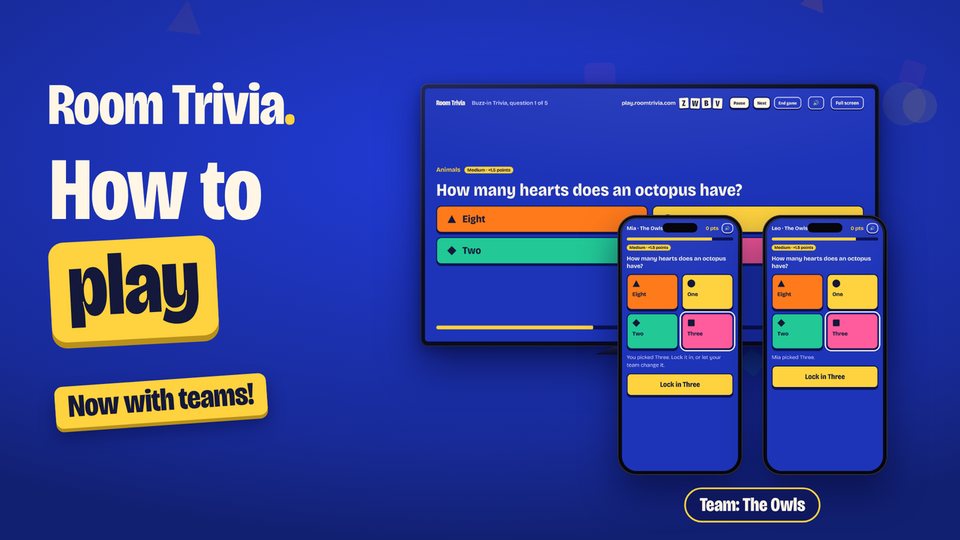 Play the video: How to play Roomful Trivia, with teams, solo and phones-only games, 6 minutes 17 seconds
What you need
- One shared screen that everyone can see: a TV, a laptop, or a projector in a classroom. A smart TV's web browser works, or plug a laptop into the TV.
- A phone for each player, or a phone per team. Any phone with a web browser will do.
- No phones handy? You can still play: see Play together on one screen below.
Start a game in under a minute
- On the big screen, open play.roomfultrivia.com and choose Host a game.
- Pick a game, the number of questions and your categories. You can also choose the difficulty, how fast the timer runs, and a set of party colors.
- Open the room. The screen shows a four-letter room code and a QR code.
- Players join on their phones by scanning the QR code, or by going to play.roomfultrivia.com and typing the code. Each player picks a nickname.
- Start the game when everyone is in. Questions appear on the big screen and players answer on their phones. Scores pop up after every question.
Get it on your TV
The game goes on the TV and everyone plays on their own phone. Here are four easy ways to get it there.
2 minutes 18 seconds, with no voice: every step is written on the screen. The video plays from YouTube when you press play. Privacy
Show the steps in writing
- HDMI cable (any TV): Plug an HDMI cable into your laptop and the TV, then press Input or Source on the TV remote and pick that HDMI port. Windows: press Windows + P and choose Duplicate. Mac: in System Settings › Displays, set the TV to Mirror. Phones need an adapter: USB-C to HDMI (iPhone 15 and newer, many Android phones) or Lightning to HDMI for older iPhones.
- AirPlay (iPhone, iPad, Mac): Works with Apple TV and many Samsung, LG, Vizio, Sony and Roku TVs. Put your device and the TV on the same Wi-Fi. Swipe down from the top-right corner to open Control Center, tap Screen Mirroring, then pick your TV. If the TV shows a code, type it on your device. On a Mac: Control Center › Screen Mirroring › your TV.
- Google Cast (Chrome, Android): Works with Chromecast, Google TV and TVs with Google Cast built in. In Chrome, click ⋮ › Cast, save, and share › Cast…, then pick your TV (casting a tab also sends the game's sound). On Android, open the Google Home app, press and hold your TV, tap Cast, then Cast my screen.
- Screen mirroring (Android, Windows): Samsung Galaxy: swipe down, tap Smart View, pick your TV, tap Start now. Roku: mirroring is on already; choose Allow when the TV asks. Fire TV: hold Home on the remote, choose Mirroring, then connect from your phone. Windows: press Windows + K and pick your TV.
- Tips: Turn on Do Not Disturb so messages don't pop up on the TV. Want to play too? Put a laptop or tablet on the TV and play on your phone. Choppy picture? Move closer to your Wi-Fi router, or use a cable.
Menus can look a little different depending on your TV, phone and software version.
The four games
Buzz-in Trivia
A question and four answers appear, each with its own color and shape. Tap the right one on your phone. Right answers score 500 points, plus up to 500 more for being quick. Harder questions are worth more (see below).
Closest Guess
Every answer is a number: how tall, how many, what year. Type your best guess. The closer you are, the more you score, with bonus points for the closest guesses in the room and for spot-on answers. Harder questions are worth more here too.
Bluff
Each round shows a true but surprising fact with a word missing. Everyone types a fake answer that sounds real. Then everyone votes for the answer they think is true. Find the truth for 1,000 points, and earn 500 for every player your fake fools. Playing solo, or together on one screen, there is no writing: just pick the real answer from the truth and a few fakes.
Wiki-guess
Clues about a Wikipedia article appear one at a time. Pick the article on your phone as soon as you think you know it. Answering after one clue is worth 1,000 points, and every extra clue you wait for is worth less.
Harder questions earn more points
In Buzz-in Trivia and Closest Guess, every question is marked Easy, Medium or Hard, and the label shows with the question. Its points are multiplied by its level:
- Easy: ×1 (up to 1,000 points in Buzz-in)
- Medium: ×1.5 (up to 1,500)
- Hard: ×2 (up to 2,000)
So a game on Mixed or Harder difficulty can score more than one on Easier, and the high-score boards reward players who take on tougher questions. Bluff and Wiki-guess score the same as before.
Play together on one screen
No phones, or playing with little ones? When you set up the game, choose Together on this screen. The whole room plays as one team: everyone calls out answers, you agree, and the host clicks the answer (or presses 1 to 4 on the keyboard). It works well for a family on the couch or a whole class.
Play in teams
Couples, families or tables can play as teams. When you set up the game on the TV, choose Teams on phones. Each person joins with the code, then starts a team or joins one. A team can share one phone or use several (up to four). When anyone on a team taps an answer, it shows on every teammate's phone so you can talk it over, change it, and then lock it in. In Buzz-in and Wiki-guess, the sooner your team locks in, the more a right answer is worth. If time runs out first, your team's last pick counts. Teams have their own high-score board.
No TV? Use phones only
From a phone, choose Solo play to play by yourself, or Host on this device to open a room on your phone and send the code to friends. Everyone then plays on their own phone, wherever they are.
Settings worth knowing
- Questions: 5, 10 or 15 per game.
- Difficulty: Easier, Mixed or Harder. Easier is great with younger kids; harder questions are worth more points.
- Pace: Relaxed, Normal or Quick changes how long players have to answer.
- Categories: more than 45, from animals and space to movies, sports and history. Faith and Religion and the For Grown-Ups categories (like the 1970s and classic TV) start switched off, so you choose them on purpose.
- Pause: the host can pause the game at any time for a snack break.
Tips for a great game
- Classrooms: put the game on the projector and let students join on school devices, or play together as one class. Every question is written to be suitable for children.
- Parties: Bluff is the funniest with five or more players, because there are more fakes to fall for.
- Mixed ages: use Easier difficulty and team kids up with grown-ups on one phone.
- Want to warm up first? Try our free trivia questions with answers.
High scores
Scores above zero go on the high-score boards with the nickname (or team name) and date. Anyone who would rather stay off the board can tick a box when they join, or take their score off on the final screen.
Ready?
It's free and takes about a minute to set up.